User Guide
Everything you need to get the most out of SiderMem
1. Getting Started
After installing SiderMem from the Chrome Web Store, click the extension icon in your toolbar to open the side panel. SiderMem works entirely in this side panel — it stays alongside your active tab so you can capture and review memories without leaving the page.
Using SiderMem without an account: You can start capturing memories immediately with no login required. Everything is saved locally in your browser. Local memories persist across browser sessions and are private to your device.
Creating an account (recommended): Tap the user icon at the top of the panel and enter your email address. SiderMem uses passwordless login — we send a one-time code to your email, which you enter to sign in. No password is ever created or stored. Before sending the code, you must confirm that you have read and agreed to the Terms of Service and Privacy Policy.
Once signed in, your account is linked to your email. You can sign in on any device and access your cloud-synced memories.
Tip
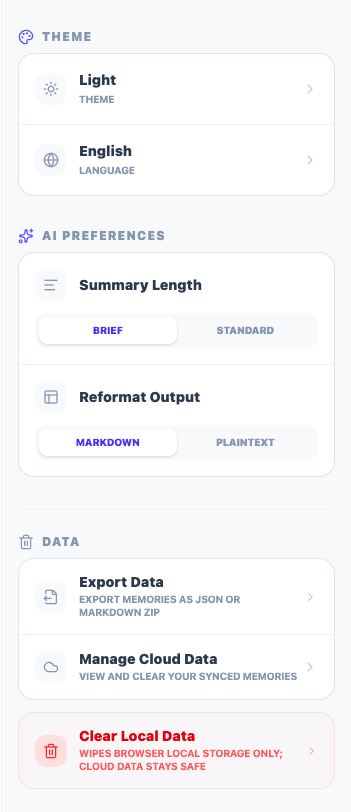
You can switch between Light and Dark mode in Settings → Theme, and change the interface language under Settings → Language.
2. Capturing Memories
From an AI Chatbot
SiderMem works directly inside ChatGPT, Claude, Gemini, and DeepSeek. When you visit any of these platforms, a small capture button appears next to each conversation. Click it to instantly save that conversation to your memory library. The memory is automatically titled based on the content and tagged with the source platform.
You can also right-click any selected text on these pages and choose "Save to SiderMem" from the context menu to save a text selection.
Manual Text Entry
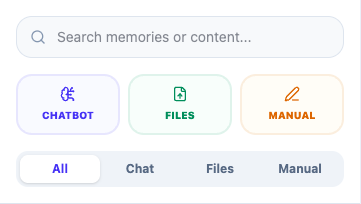
Click the Manual button in the side panel to open the editor. Type or paste any text directly, give it a title, and click Save. This is useful for capturing notes, ideas, or content from sources that SiderMem does not automatically support.
Importing Files
Click the Files button in the side panel to import content from a file. SiderMem supports .txt, .md (Markdown), and .pdf files. PDF text is extracted directly in your browser — the file is never uploaded to any server. Large files are accepted for local storage, but files over 128 KB cannot be synced to the cloud.
Important
Do not save passwords, bank account numbers, government IDs, or other sensitive credentials. SiderMem is a productivity tool, not a secure vault. See our Privacy Policy for details.
3. Organizing & Starring
Your memory library is sorted by creation date, with the most recent at the top. Use the tab bar to filter by source type: All, Chat, Files, or Manual.
Search: Type in the search bar to instantly filter memories by title, content, or file name. The search is local and works without a network connection.
Starring a memory: Every memory card has a star icon to the left of the title. Click it to mark the memory as important. Starred memories are automatically moved to the top of the list. Multiple starred memories remain sorted by date among themselves. Click the star again to remove it. The star state is saved locally and synced to the cloud the next time you manually sync that item.
Card action buttons: Hover over a card to reveal the full set of action buttons in the top-right corner — from left to right: AI Summary, AI Reformat, Share, Sync, Copy, and Delete.

Status indicators (bottom bar): The four small icons at the bottom of each card show the current state at a glance — whether an AI summary exists, whether the content has been reformatted, whether the memory is publicly shared, and whether it is in sync with the cloud.
Editing a memory: Click anywhere on the card title or content area to open the editor. You can change the title, edit the content, or update the tags.
Deleting a memory: Hover over a card to reveal the action buttons, then click the trash icon. If the memory was synced to the cloud, the deletion is also pushed to the server on the next sync.
4. Cloud Sync
Cloud Sync is available to logged-in users. It stores your memories on SiderMem's cloud infrastructure so you can access them from any device.
Syncing a single item: Hover over a card and click the sync icon (circular arrows). The icon color tells you the current sync state:
- Green — in sync with the cloud
- Amber / spinning slowly — modified locally, not yet synced
- Red — a conflict was detected (both local and cloud were changed)
- Grey — never synced
Syncing all items: Tap the global sync button at the top of the panel to push all pending local changes to the cloud at once.
Storage limits: Free accounts can sync up to a limited number of memories. Pro and Ultra plans increase this quota. If your cloud quota is full, new syncs are blocked until you delete cloud memories or upgrade. Items over 128 KB in size cannot be synced regardless of plan.
Tip
SiderMem can be used entirely offline. Cloud Sync is opt-in — your local data is always accessible even without an internet connection or account.
5. AI Features Pro & Ultra
AI features require a Pro or Ultra subscription and a logged-in account. Each action counts against your monthly AI quota, visible in the Account section.
Before running an AI action, check your preferences in Settings → AI Preferences. You can configure Summary Length (Brief or Standard) and Reformat Output format (Markdown or Plain Text).
AI Summary (Wand icon)
Hover over a card and click the wand icon. SiderMem generates a structured briefing with four sections: Background & Goal, Key Information & Decisions, Progress & Results, and Open Questions & Next Steps. The output is designed to be pasted at the start of a new AI session to restore context instantly.
The AI detects the language of your content and responds in the same language. Once generated, the summary is saved to the memory and the wand icon in the status bar turns green. Click the green wand to copy it to your clipboard.
AI Reformat (Layout icon)
Hover over a card and click the layout icon. The AI reorganizes the content into a clean, well-structured document — grouping related ideas under headings, using bullet points for lists, and bolding key terms. No information is removed; the goal is readability, not summarization.
The formatted result is saved to the memory and can be copied from the layout icon in the status bar once it turns green.
Note
AI-generated content may be inaccurate or incomplete. Do not rely on AI output for critical decisions. See our Terms of Service for the full AI disclaimer.
6. Exporting Your Data
Go to Settings → Export Data to download your entire memory library. Two formats are available:
-
Single JSON File — exports all memories into one structured
.jsonfile. Best for backups or importing into other tools. Each memory includes its original content, AI-generated summary and reformat (if available), source metadata, and timestamps. -
ZIP Archive of Markdown Files — exports each memory as an individual
.mdfile with YAML frontmatter (title, UUID, source, tags, timestamps). Fully compatible with Obsidian, Logseq, and other Markdown-based note-taking tools.
Exports include all local memories for your account, including those that have never been synced to the cloud. We recommend exporting regularly as a personal backup.
8. Frequently Asked Questions
The capture button doesn't appear on my AI chat page. What should I do?
First, make sure you are on one of the four supported platforms (ChatGPT, Claude, Gemini, or DeepSeek). Then try reloading the page — the content script sometimes needs a full refresh after the extension is first installed or updated. If the button still doesn't appear, try disabling and re-enabling the extension from chrome://extensions.
My captured conversation looks garbled or incomplete. What happened?
SiderMem captures the text visible in the page at the moment you click. If the AI is still generating its response, wait until it finishes and capture again. Some platforms also use dynamic rendering that may affect extraction — if a platform consistently produces poor results, please report it at support@sidermem.com.
Can I edit a memory's title or content after saving it?
Yes. Click anywhere on the card's title or content preview to open the editor. You can update the title, edit the full text, or modify the tags. When you save, the memory is marked as locally modified (amber sync indicator) and can be pushed to the cloud with the sync button.
Why is the AI responding in the wrong language?
SiderMem's AI is instructed to detect the primary language of your content and respond in the same language. If the content mixes languages, the AI uses the dominant one. Very short content may not provide enough signal for reliable detection — try adding more context to the memory before running the AI action.
What does it mean when a memory is "inactive"?
When your cloud storage quota is full, older synced memories may be marked inactive. They remain fully readable locally, but public share links and AI features are disabled on them. To reactivate, delete other cloud memories to free up space, or upgrade your plan.
I lost my memories after clearing browser data. Can I recover them?
Local memories live in your browser's IndexedDB. Clearing browser data will permanently erase them unless they were previously synced to the cloud. Always use the Export feature for a local backup — and enable Cloud Sync for automatic off-device copies.
I starred a memory but it doesn't show as synced. Is that normal?
Yes, this is intentional. Starring is a lightweight local action and does not trigger an automatic cloud sync. The sync indicator turns amber to show the item is modified locally. Click the sync icon on the card, or use the global sync button, to push the updated star state to the cloud.
How do I use the Markdown export in Obsidian?
Choose ZIP Archive of Markdown Files in Settings → Export Data. Extract the ZIP, then in Obsidian go to Open folder as vault and select the extracted folder. Each memory becomes a note with YAML frontmatter containing the title, UUID, source, tags, and timestamps — fully compatible with Obsidian's default parser.
How do I permanently delete all my cloud data?
Go to Settings → Cloud Data. After verifying your identity via email OTP, you can clear all synced memories from the cloud. Your local data remains untouched. All cloud data is permanently purged within 7 days of the deletion request.
Does SiderMem read my browsing history or collect data automatically?
No. SiderMem only reads page content on the four supported AI platforms, and only when you explicitly click the capture button. There is no background data collection, no analytics, and no ad tracking. See our Privacy Policy for full details.
Related
Still have questions? Contact us at support@sidermem.com